> ## Documentation Index
> Fetch the complete documentation index at: https://checkly-422f444a-mintlify-f58fa421.mintlify.site/llms.txt
> Use this file to discover all available pages before exploring further.
# Integrating GitLab Alerts
> Configure GitLab Alerts integration to receive failure, degradation, and recovery messages from Checkly
Checkly integrates with [GitLab Alerts](https://docs.gitlab.com/ee/operations/incident_management/alerts.html) and can deliver failure, degradation, and recovery messages to any project in your GitLab installation. More specifically, Checkly will:
* Open new alerts when a check fails.
* Close alerts automatically when a failing check recovers.
* Alert when SSL certificates are about to expire.
1. First, create an **HTTP Endpoint**. Log in to GitLab, select a project workspace and go to "Settings" > "Monitor" and expand the "Alerts" tab and click the "add new integration" button. Then select "HTTP Endpoint" as the integration type.
2. **Choose a name** for your integration like "Checkly".
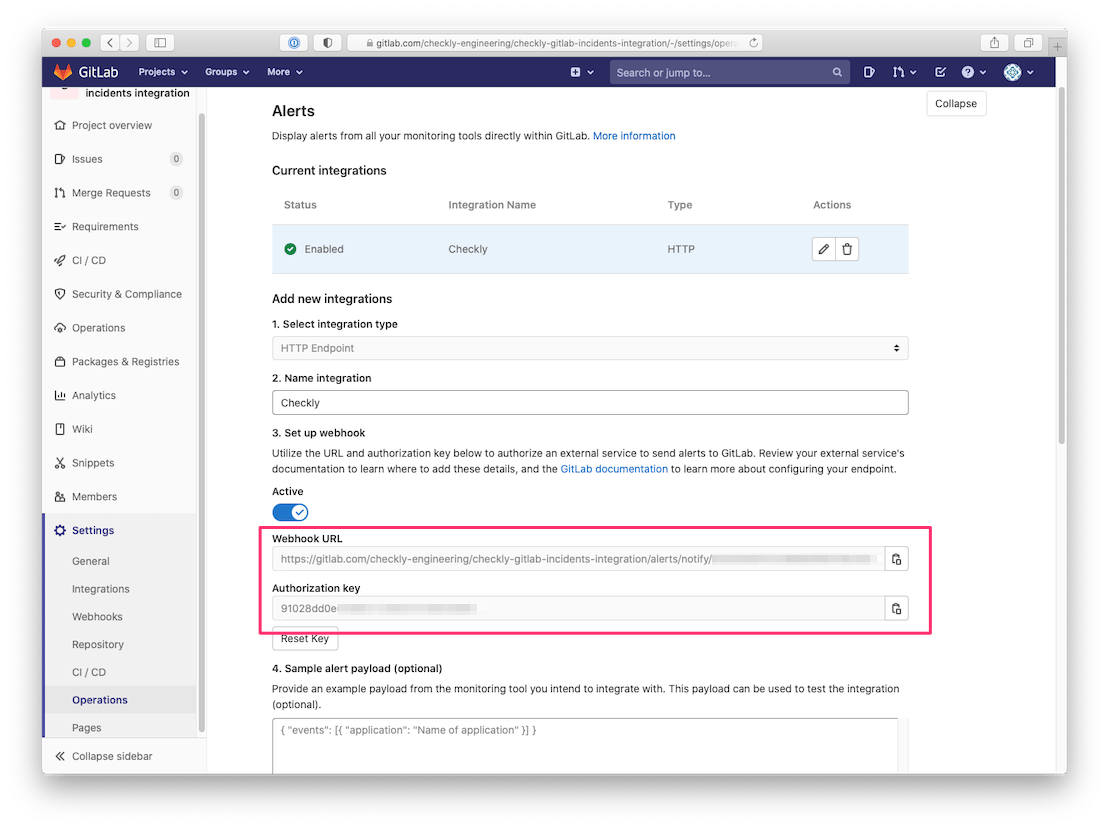
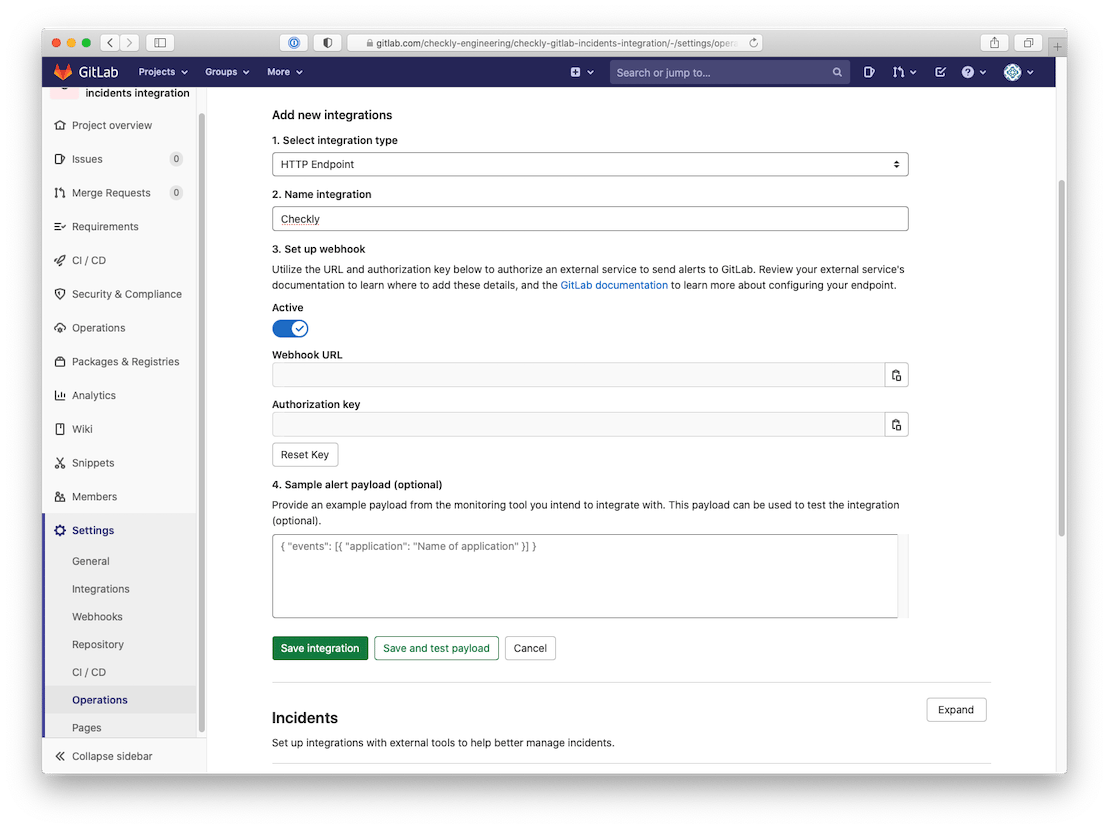 3. Save the integration **copy the displayed Webhook URL and Authorization Key**. It should start with something like `https://gitlab.com/...`
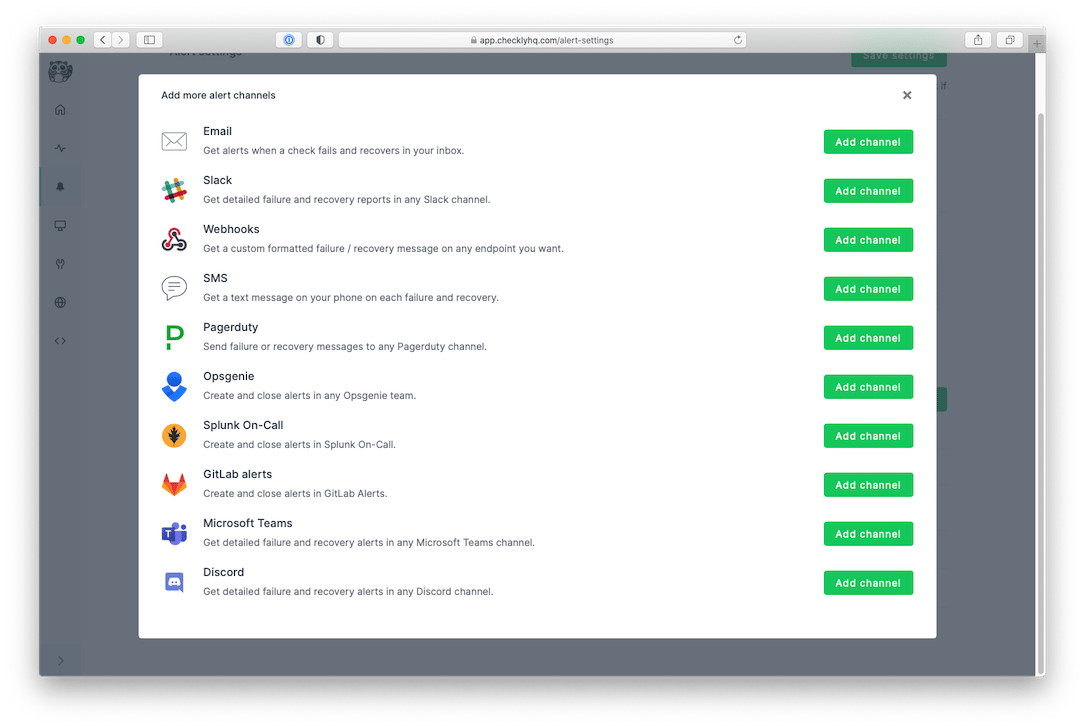
 4. Log in to Checkly and navigate to [Alert Settings](https://app.checklyhq.com/alert-settings/). Click the "Add more channels" button, find GitLab Alerts on the list, and click "Add channel".
 5. Give the alert channel a name and **paste the Webhook URL and Authorization Key** in their respective input fields. You can now also tweak which alerts you want to be notified of and which checks or check groups should be subscribed to this channel.
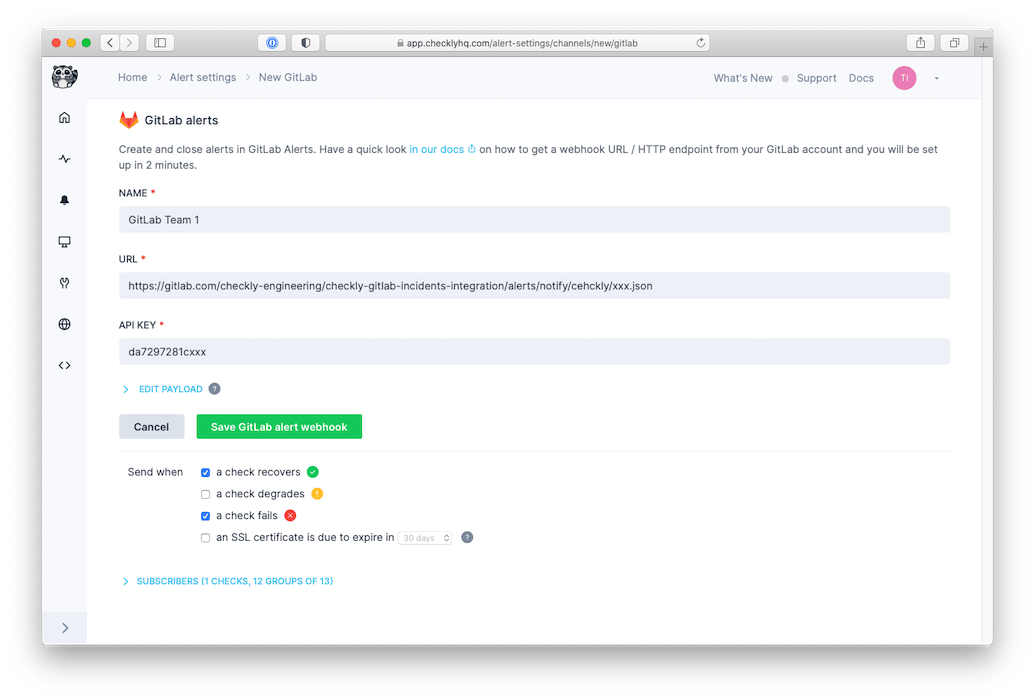 > Note that we provide a preconfigured message payload but you are free to edit the payload and add more or different variables. Just click the "Edit payload" button and reference the "Help & variables tab".
Congratulations! You have successfully integrated Checkly with GitLab Alerts!
> Note that we provide a preconfigured message payload but you are free to edit the payload and add more or different variables. Just click the "Edit payload" button and reference the "Help & variables tab".
Congratulations! You have successfully integrated Checkly with GitLab Alerts!